Getting Started
Welcome to XBRUSH.
XBRUSH is an AI-powered creative platform that turns a single line of chat into images, video, and music. You can generate, enhance, edit, and publish — all from the browser, with no design skills required.
This page is here to show you, in one pass, what each of the seven top menus is for. Detailed instructions for each feature follow in the guides linked from every section.
ℹ️ Before you begin
- Open Studio can be browsed without logging in. See what people are making before you create an account.
- Workspace, Social Media, and Apps are available after you log in. Joining a generation in Open Studio also requires login.
- Generation consumes credits, and free engines are available as well. Generation in Open Studio runs on a shared credit pool XBRUSH provides for all users, so none of your own are spent.
🏠 The Home Screen and Top Menu
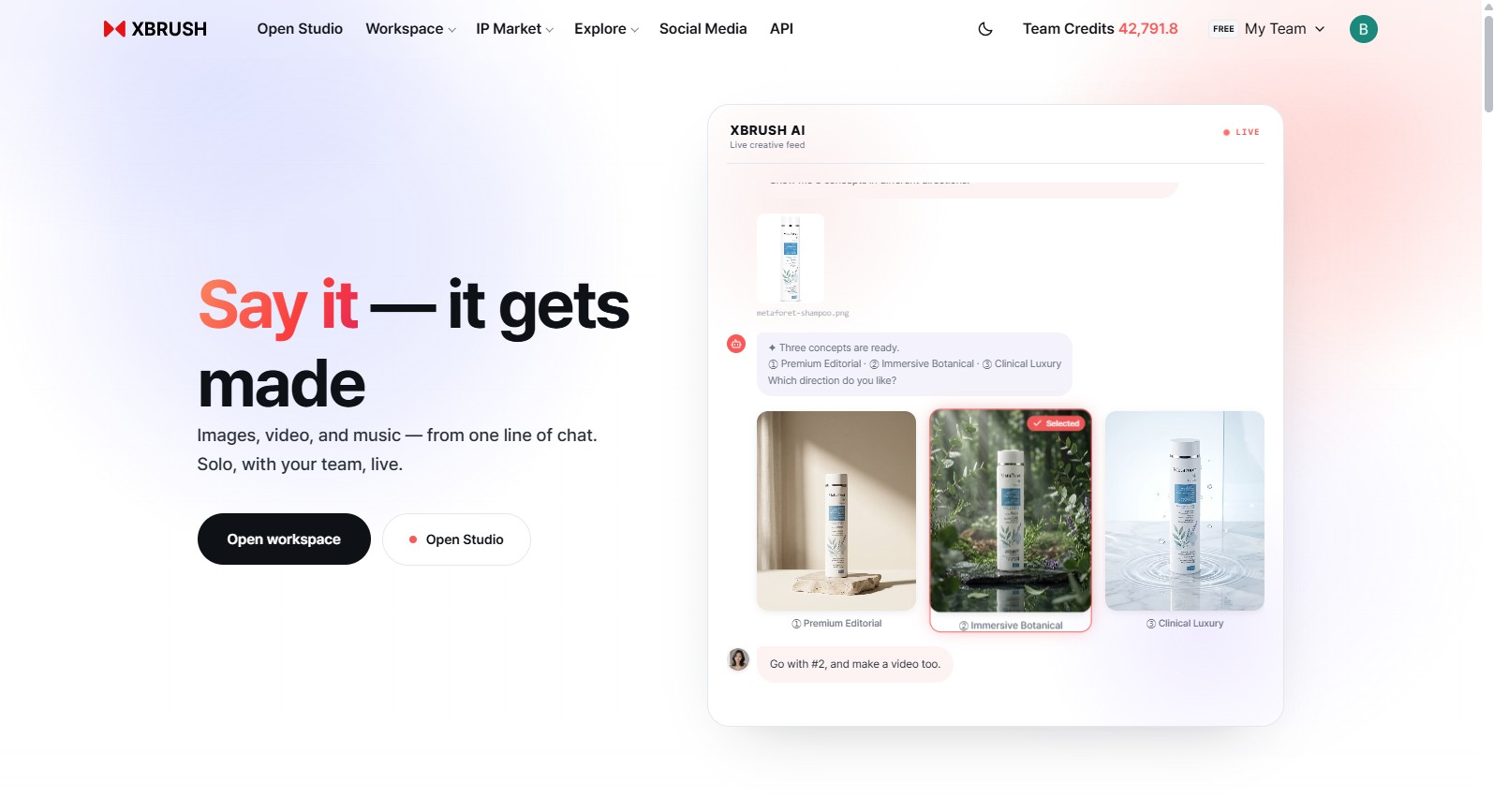
The first screen you see at xbrush.ai. Seven menus run across the top, with the dark mode toggle, Subscribe, and Log In / Sign Up on the right.
Menu names appear in English or Korean depending on your language setting. The table below follows the order the menus appear in the header.
| Menu | What it's for | Login |
|---|---|---|
| Open Studio | Try a shared studio without spending your credits | Browse: not required Generate: required |
| Workspace | Do the actual work with the AI agent | Required |
| IP Market | Create and trade AI personas — Cinema and Talk2U live inside here | Not required |
| Explore | Browse what other creators have made | Not required |
| Social Media (SNS) | Publish and manage posts on social media | Required |
| Apps | Run single-purpose tools | Required |
| API | Integrate XBRUSH features via API | Not required (docs) |
⚠️ Cinema is not a top menu. It is one of the six items in the left sidebar of IP Market — Browse Models · Explore · Cinema · Talk2U · Register Model · My Videos. Open IP Market first, then pick Cinema from that sidebar.
Menus with a chevron (⌄) open a preview panel on hover.
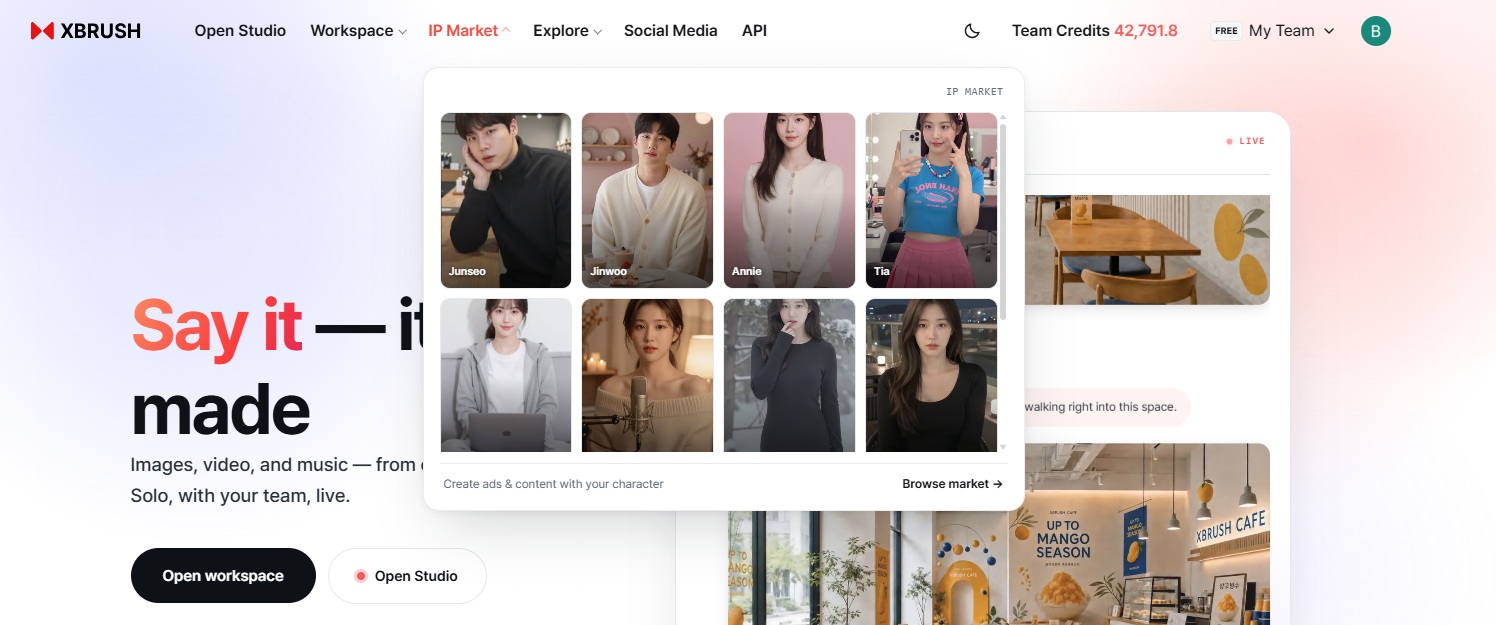
Hovering over a menu with a chevron. Its sub-items unfold right there, so you can jump straight to what you need without leaving the page.
🧭 Explore
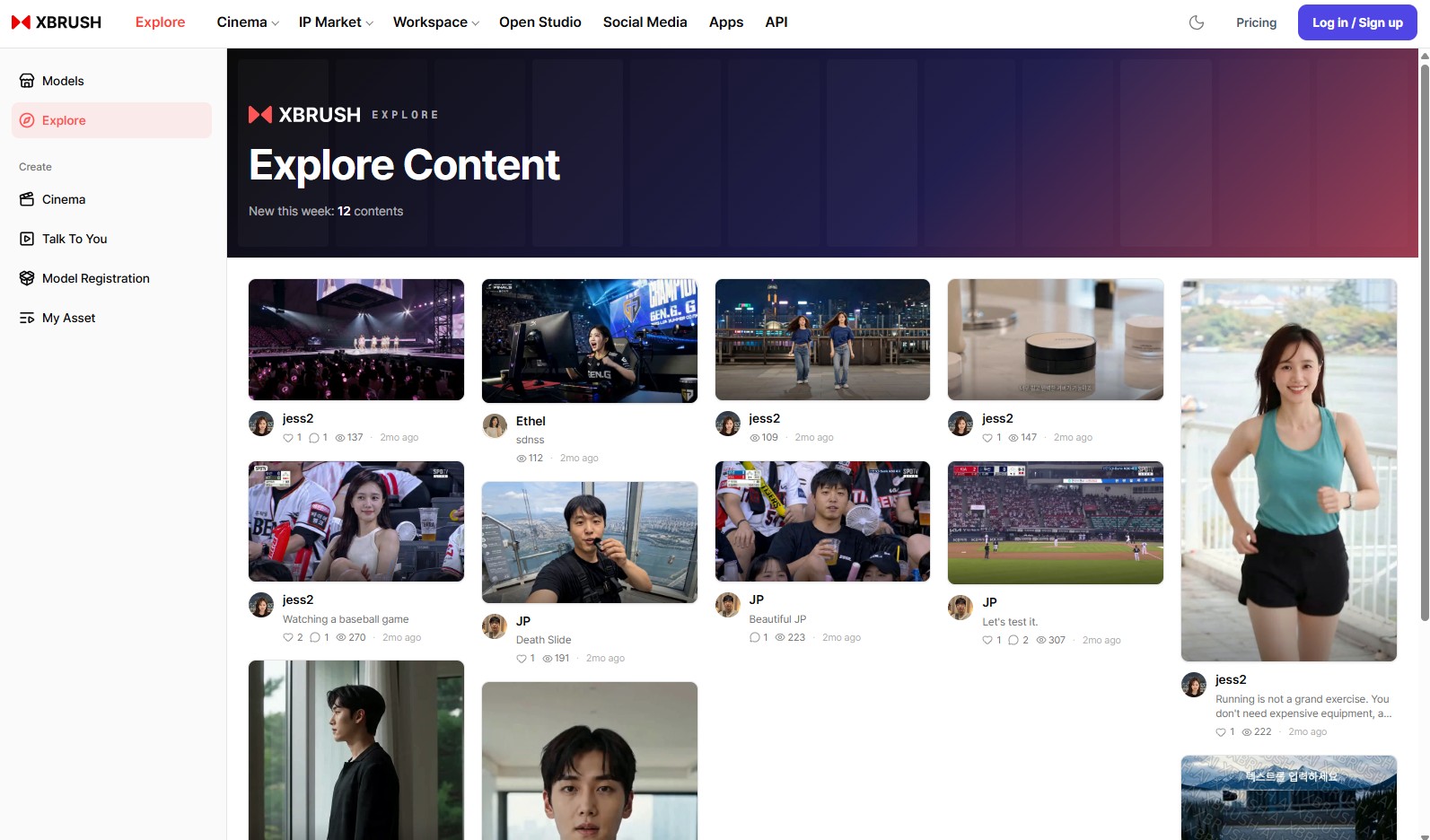
Newly published content, arranged as cards. Each card shows the creator along with like, comment, and view counts.
Explore is where you browse the images and videos other creators have made public with XBRUSH. It is the fastest way to get a feel for what the platform can do, and when something catches your eye you can look into how it was produced and apply that to your own work. No login needed.
👤 IP Market
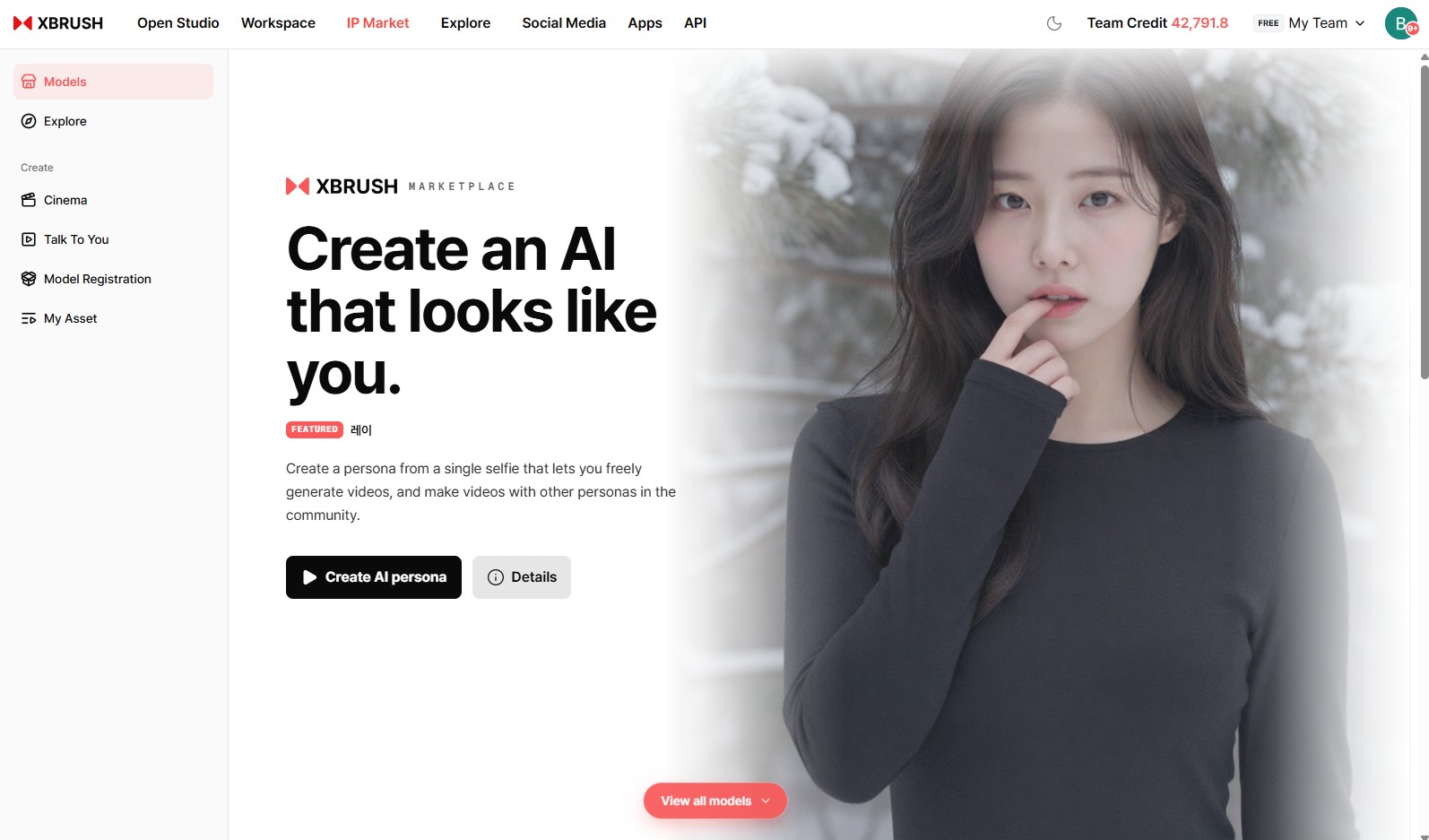
"Create an AI that looks like you" — entry points for building an AI persona and browsing all models.
IP Market is where AI personas are created and traded. A single selfie is enough to build a persona that resembles you and can be used in video production, and you can just as easily pick a persona published by the community and cast it in your own video.
List your persona on the market and you earn credit revenue every time another creator produces a video with it.
IP Market is also the entry point for ad video production. Its left sidebar carries six items:
| Sidebar item | What it's for |
|---|---|
| Browse Models | Browse and select AI models from the marketplace |
| Explore | Browse ad videos other creators have published |
| Cinema | Produce premium ad videos from cinematic templates |
| Talk2U | Generate ad videos with product synthesis and a script |
| Register Model | Register your likeness as a persona and earn revenue |
| My Videos | Manage and download the videos you generated |
- Learn more: Model Registration (Persona) guide
🎬 Cinema — inside IP Market
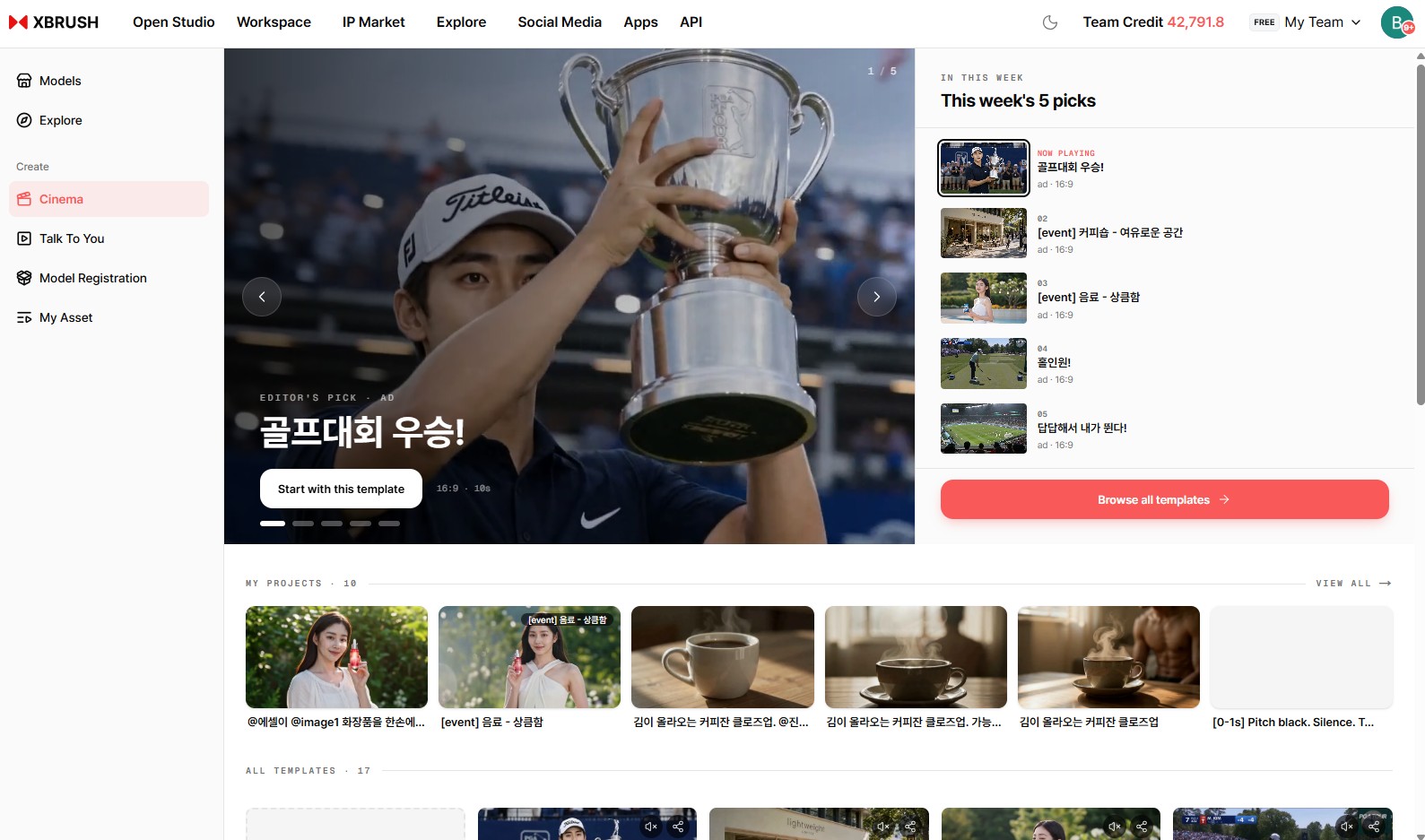
This week's five picks alongside the full template list. Each template shows its ad type (ad/viral) and aspect ratio (16:9 / 9:16).
Cinema produces premium ad videos without a shoot. Open IP Market in the top navigation, then click Cinema in the left sidebar. There are two ways to work:
- Template — Pick a cinematic template that already has its narrative, persona, and script in place. Best for producing a polished brand ad quickly.
- New Creation — Start from a blank canvas and configure the persona, script, and visual style yourself.
Any generated video can be refined further in the Timeline Video Editor via the edit button on the video card.
- Learn more: Cinema guide
🛠 Workspace — available after login
Workspace is the core space where the actual production happens.
Its defining feature is the AI agent. Instead of hunting through tools one at a time, you describe what you want in plain language and the agent generates and edits images, sound, and video for you, chaining together whatever steps are needed. A single instruction like "cut this out, put it on a white background, and add a caption underneath" runs end to end.
That conversation can also be held together with your team. Teammates join the same job, add their own instructions, and see the results in the same place.
Images (generate, edit, outpaint, background removal, upscale), video (generate, upscale, extend, edit), and audio (voice, music, sound effects, lip sync) are all handled here.
🔒 Workspace is available after you log in. To see what it's like first, Open Studio below lets you watch the same AI agent at work with no login at all.
- Learn more: Workspace guide · Image Generation · Video Generation
🌐 Open Studio — try it without spending your credits
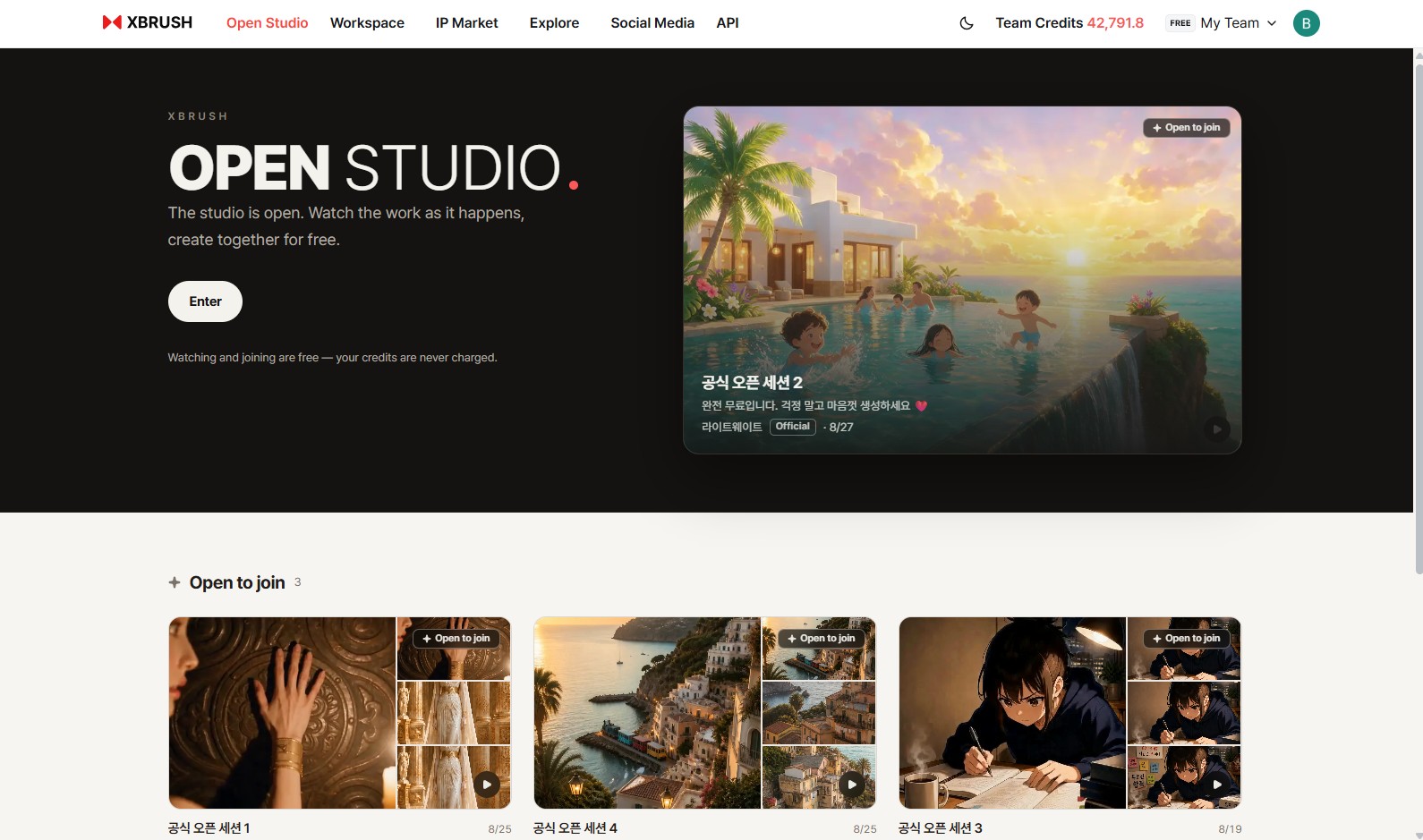
"The studio is open. Watch it being made, and make it with us for free." — jobs open to join are listed below.
Open Studio is the fastest way to experience XBRUSH.
It is a shared studio open to everyone. It carries the very same AI agent as Workspace, and browsing needs no login — before you create an account you can see exactly what instructions people give and what comes back.
Joining a generation does require login, but not a credit purchase. Generation in Open Studio runs on a shared credit pool XBRUSH provides for all users, so not one of your own credits is spent. Think of it as a sandbox where you can give the instructions yourself and see what XBRUSH's AI agent produces — without entering any payment details.
That pool is shared by everyone, though. Whatever others use is no longer there for you, and when it runs dry generation pauses — until midnight KST (Seoul time, UTC+9), when the pool resets and starts over full.
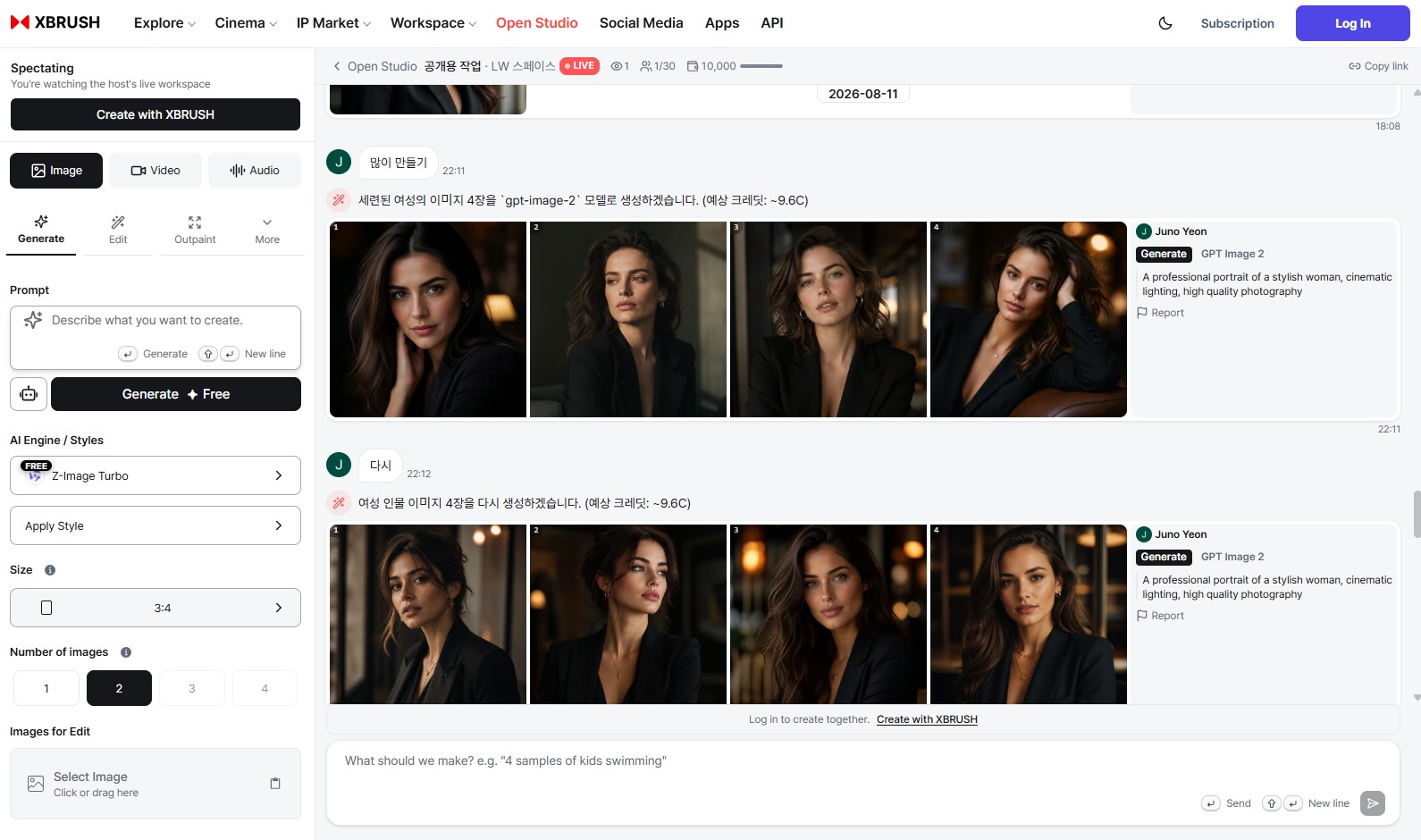
Inside a shared studio. On the left is the same generation panel as Workspace; on the right, participants' conversation and generated results stream in live. The header shows the current participant count and the credits allocated to the job.
Once you enter a job, you can see exactly what everyone else is asking for and how. Which engine the agent chose and why, what happens if you switch to a faster one — it all plays out in the conversation, so you pick up the workflow far faster than by reading a manual.
💡 Press Enter to walk into a studio and watch work in progress. When you want to make something yourself, log in and use Create together now at the bottom of the page. See the Open Studio guide for details.
📣 Social Media — available after login
Social Media lets you publish and manage your results directly on social platforms.
Connect an account once and images and videos made in Workspace go straight out — no downloading and re-uploading — and you can track what was posted where and when from a single place.
🔒 Social Media is available after you log in.
- Learn more: Social Media guide
🧩 Apps — available after login
Apps collects frequently used single-purpose functions into standalone tools.
For jobs with one clear goal — background removal, photo enhancement, erasing people or objects — you just upload a file and get the result. Where Workspace is for combining multiple steps and tuning the details, Apps takes the shortest path to finish one task.
🔒 Apps is available after you log in.
🔌 API
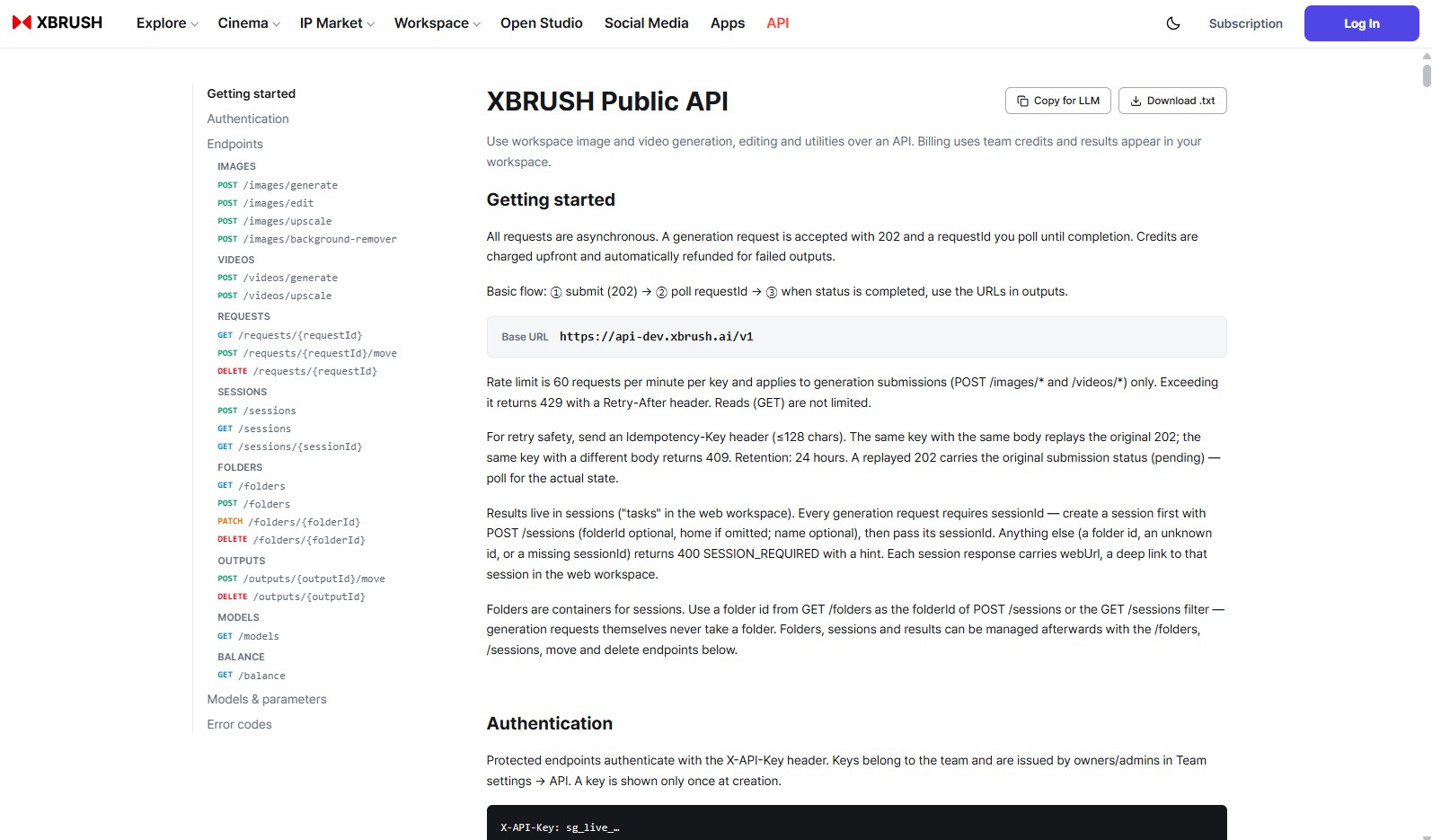
The API documentation screen — endpoints on the left, getting started and authentication on the right.
API exposes XBRUSH's features so external services can use them, and this screen documents how.
Image and video generation, editing, and utility functions from Workspace can all be called via API. Requests are asynchronous: you submit a job and poll until it completes. Charges are drawn from team credits, and the results also appear in your Workspace. The API key needed for authentication is issued from team settings.
🔗 Quick Links
- Try it first: Open Studio — browsing needs no login, generating runs on a shared pool rather than your credits
- Generate: Image Generation · Video Generation · Audio Generation
- Ad video: Cinema · Model Registration (Persona)
- Quality & editing: Image Enhancement · Editor
- Operations: Workspace · Credits & Payment
- Help: FAQ · Contact Us